Silent and Sudden: How SSDs Fail Without Warning and What You Can Do Before It's Too Late

For most American laptop users, the upgrade from a traditional spinning hard drive to a solid-state drive felt like a revelation. Boot times dropped from minutes to seconds. Applications launched instantly. The machine ran cooler and quieter. Everything about the experience suggested that SSDs were simply better — more reliable, more modern, more durable.
That perception is dangerously incomplete.
Solid-state drives do offer genuine advantages over mechanical hard drives in many respects. But they also carry a distinct failure profile that most consumers never learn about until they are staring at a black screen, watching their laptop refuse to recognize a drive that worked perfectly the day before. Understanding that failure profile — and acting on it before a crisis arrives — is one of the most consequential things a laptop owner can do.
Why SSDs Fail Differently
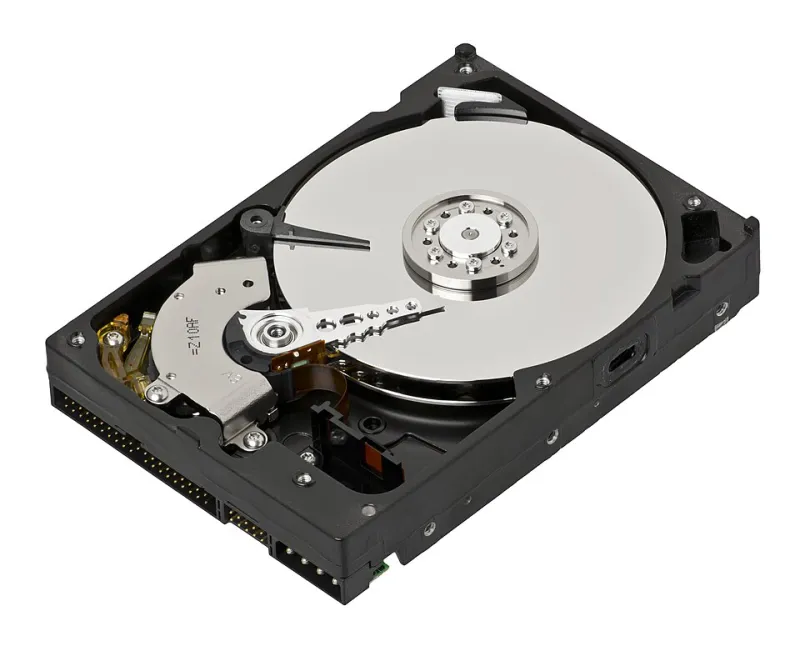
A traditional hard drive stores data magnetically on spinning platters. When it begins to fail, the degradation is often gradual and audible. Clicking, grinding, or repeated read errors give users days or even weeks of warning. That window, however narrow, allows time to copy critical files to another location.
Solid-state drives operate on an entirely different principle. They store data in NAND flash memory cells — microscopic transistors that trap electrical charges to represent binary information. Every time data is written to a cell, that write operation causes a small amount of physical wear to the cell's insulating layer. Over thousands of write cycles, the insulation degrades to the point where the cell can no longer reliably hold a charge.
The critical distinction is this: NAND flash degradation is cumulative, invisible, and often non-linear. A drive can function at full capacity for years, then cross a threshold that triggers rapid, cascading failures across multiple memory blocks simultaneously. There is no clicking. There is no grinding. In many cases, there is no error message at all — just a sudden, complete loss of access.
The Specific Failure Modes You Need to Know
SSD failures tend to cluster around several distinct mechanisms, each with its own timeline and risk profile.
Write endurance exhaustion is the most well-documented form of SSD degradation. Every NAND cell has a finite number of program/erase cycles — commonly referred to as P/E cycles — before it becomes unreliable. Consumer-grade SSDs typically use TLC (triple-level cell) or QLC (quad-level cell) NAND, which offers high storage density at lower cost but significantly reduced endurance compared to the MLC and SLC chips found in enterprise-grade hardware. For users who perform heavy video editing, software development, or large-scale file transfers, write endurance can become a real constraint within three to five years.
Power loss corruption represents a more immediate risk. Unlike mechanical drives, SSDs rely on capacitors and volatile cache memory to manage write operations. A sudden power interruption — a dead laptop battery, an unexpected shutdown, a power surge — can interrupt a write cycle mid-operation, leaving data in a partially written state. Some drives include power-loss protection circuitry. Many consumer models do not.
Firmware failures are perhaps the most unsettling failure mode because they are entirely outside the user's control. SSD manufacturers periodically release firmware updates to address bugs and performance issues. In some cases, unpatched firmware vulnerabilities can cause a drive to enter a locked or bricked state, making data inaccessible even when the underlying NAND cells are physically intact. Several high-profile firmware bugs have affected major SSD brands sold widely in the US market, rendering drives unresponsive without any prior warning.
Controller failures occur when the processor chip responsible for managing data routing between the host system and the NAND cells malfunctions. Because the controller mediates all access to stored data, a controller failure typically results in complete inaccessibility — even if the actual memory cells remain undamaged.
Warning Signs That Do Exist — If You Know Where to Look
While SSDs rarely produce the dramatic symptoms associated with failing mechanical drives, they are not entirely silent. The problem is that the warning signs require active monitoring to detect.
The most reliable tool available to most users is S.M.A.R.T. (Self-Monitoring, Analysis, and Reporting Technology) data. Most modern SSDs report health metrics through this standard, including total bytes written, reallocated block counts, wear leveling counts, and uncorrectable error rates. Accessing this data requires a third-party application; Windows does not surface it natively in a meaningful way. Tools such as CrystalDiskInfo (for Windows) or DriveDx (for macOS) can translate raw S.M.A.R.T. values into readable health assessments.
Specific S.M.A.R.T. attributes warrant close attention. A rising count of reallocated or uncorrectable sectors suggests that the drive's internal error correction is working harder than normal — a potential sign of advancing wear. A percentage remaining life indicator below 10 percent should be treated as a serious alert, not a minor notification.
Beyond S.M.A.R.T. data, behavioral changes can also signal emerging problems. Unexplained slowdowns during read or write operations, files that fail to open without an obvious reason, or applications that crash repeatedly without a software explanation may all indicate underlying storage instability.
Practical Steps to Take Right Now
Monitoring SSD health is not a one-time task. It requires periodic attention — ideally built into a monthly routine.
Install a S.M.A.R.T. monitoring tool and review it regularly. Set it to alert you if any critical attributes change. Do not wait until you notice a problem; check proactively.
Know your drive's total bytes written relative to its rated endurance. Most SSD manufacturers publish TBW (terabytes written) ratings for their products. If you have written a significant fraction of that rated endurance, treat the drive as being in its final service period and prioritize backup frequency accordingly.
Keep firmware updated — carefully. Check your SSD manufacturer's website for firmware updates, and apply them when they address known stability issues. However, perform a full backup before any firmware update, as the update process itself carries a small risk of failure.
Do not rely on the drive's own health indicators as your only safeguard. S.M.A.R.T. data is informative but imperfect. Some SSDs fail catastrophically with no prior S.M.A.R.T. warnings at all. A robust, verified backup strategy — one that stores copies in at least two separate locations, including an offsite or cloud destination — remains the only true protection against sudden, unannounced failure.
When the Drive Has Already Failed
If your SSD has already become inaccessible, the most important action is to stop using it immediately. Unlike mechanical drives, where continued operation risks physical damage to platters, SSDs face a different risk: continued power cycling can accelerate data loss in drives experiencing NAND degradation or controller instability.
Do not attempt to reformat the drive, run consumer-grade recovery software, or restore factory settings through BIOS prompts. These actions can overwrite data structures that a professional recovery technician might otherwise reconstruct. SSD data recovery is a highly specialized field; controller failures and firmware corruption require lab-level tools and expertise that fall well outside the capabilities of standard recovery software.
The architecture that makes solid-state storage fast and quiet also makes it unforgiving. The best time to take SSD health seriously is before any warning appears — because by the time the warning is obvious, the margin for recovery may already be gone.