One Click, Gone Forever: How Overwrite Protocols Are Silently Erasing Your Work History

There is a widely held belief among everyday computer users that modern software has solved the problem of accidental data loss. Auto-save notifications appear at the bottom of screens, version history menus are tucked neatly into cloud dashboards, and the general assumption is that some earlier copy of your work is always retrievable. That assumption, unfortunately, is not always accurate — and the gap between what users believe and what these systems actually do can be the difference between recovering a critical document and starting from scratch.
This is not a hypothetical concern. Professionals across industries — from architects working in design software to attorneys drafting contracts in Microsoft Word — have discovered, often at the worst possible moment, that their version history was either incomplete, unavailable, or had already been overwritten without warning.
What "Auto-Save" Actually Means in Practice
The term "auto-save" covers a wide range of behaviors depending on the application and platform. In Microsoft 365, for instance, auto-save is tied to OneDrive or SharePoint and functions as a continuous sync mechanism. Every few seconds, changes are pushed to the cloud. This is useful for preventing loss from sudden power failures, but it introduces a specific risk: if you make a damaging change — deleting a section, overwriting a table, or accepting a flawed bulk replacement — that change is synced almost immediately.
The version history feature in Microsoft 365 does retain prior states of a document, but its depth and reliability depend on your subscription tier, your organization's IT settings, and how frequently Microsoft's servers create named restore points. For personal accounts, version history may be limited to 30 days. For some business configurations, IT administrators have shortened that window further to manage storage costs.
Google Docs operates on a similar model. The platform maintains a revision history, accessible through File > Version History, but it does not save every individual keystroke as a separate recoverable snapshot. Instead, Google consolidates edits into grouped revisions, particularly for documents that have been open and active for extended periods. A user who spent three hours revising a proposal and then inadvertently saved over the final section may find that the most recent recoverable version already includes some of those unwanted changes.
Design Software and the Overwrite Problem
The risk is considerably more acute in creative and design environments. Applications such as Adobe Photoshop, Illustrator, and InDesign have historically relied on manual save behavior. When a user saves a file using the standard "Save" command rather than "Save As," the application overwrites the existing file on disk. There is no automatic version branching. The previous state is gone unless the user explicitly created a backup copy or the application's history states are still held in active memory — which they are not once the program is closed.
Adobe's Creative Cloud does offer a "Version History" feature for certain file types synced through the cloud, but this is not uniformly applied across all applications or file formats. A designer working locally without cloud sync enabled has no native versioning safety net at all.
For professionals using Figma, Sketch, or other UI/UX tools, cloud-based versioning is more robust, but it still requires active awareness. Figma, for example, saves named versions indefinitely but compresses unnamed auto-saved versions after 30 days on free plans, removing granular recovery options.
How Quickly Does Overwritten Data Become Unrecoverable?
On a traditional spinning hard drive, an overwritten file sector may occasionally be partially recoverable using specialized forensic tools — but this is not guaranteed and depends heavily on how much new data has been written to the same physical location since the overwrite occurred. On a solid-state drive (SSD), which is now the standard in most laptops and desktops sold in the United States, recovery from an overwritten sector is effectively impossible. SSDs use a process called wear leveling and TRIM commands that actively redistribute and clear data, leaving no residual trace of prior content.
This means the window for recovery after an overwrite event on modern hardware is extremely narrow. In many cases, it does not exist at all.
Practical Strategies for Maintaining Accessible Version History
Given these limitations, relying solely on built-in auto-save features is insufficient for anyone whose work carries significant professional or personal value. The following practices provide meaningful protection.
Establish a manual versioning habit. Before making any substantial revision to a document, use "Save As" to create a dated copy. A naming convention such as ProjectName_2025-06-10_v2.docx takes seconds to implement and provides an immediately accessible fallback that requires no cloud connectivity or subscription tier to retrieve.
Understand the version history settings in every tool you use. Do not assume that version history is enabled or configured optimally by default. In Microsoft 365, review your OneDrive settings to confirm version history is active and check how many versions are retained. In Google Workspace accounts managed by an employer or institution, ask your IT department what the retention policy is before you need to know.
Use dedicated version control for high-value files. Software developers have long relied on tools like Git for tracking changes to files over time. While Git is not intuitive for non-technical users, applications such as Dropbox (which maintains 180-day version history on paid plans) or dedicated backup tools like Backblaze provide accessible alternatives for writers, designers, and business professionals.
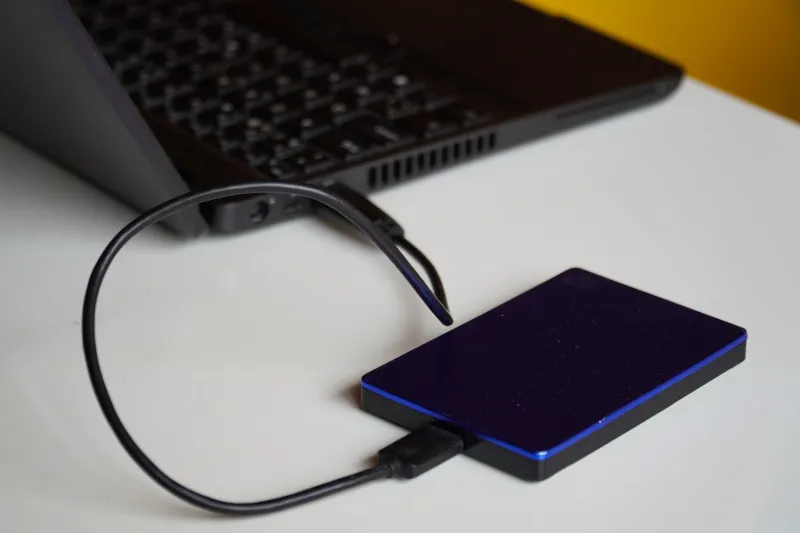
Do not rely on a single cloud platform as your sole backup. Cloud sync is not the same as cloud backup. If a file is overwritten on your local machine and that change syncs to the cloud before you recognize the problem, both copies reflect the damaged state. A separate, independent backup — whether a local external drive or a second cloud service — is the only reliable safeguard against this scenario.
Act immediately when you recognize an overwrite event. If you realize you have overwritten or corrupted a file, stop using the device. Do not save additional files, open new applications, or allow background processes to continue writing to the drive. Every new write operation reduces the already limited possibility of recovery. Contact a professional data recovery service as quickly as possible if the file cannot be retrieved through version history.
The Broader Lesson
The convenience features built into modern productivity software are genuine improvements over the manual save workflows of earlier computing eras. But convenience and comprehensive protection are not the same thing. Auto-save prevents the loss of unsaved work during a crash. It does not protect against the consequences of your own actions once a save has been executed.
For users who treat their digital files as mission-critical assets — which, increasingly, describes nearly everyone — the appropriate response is not to trust that the software will handle recovery. It is to build a deliberate, layered protection strategy before the moment of crisis arrives. At SOS File, we consistently observe that the users who recover successfully are those who had a plan in place before they needed it. The ones who did not are left with a much harder conversation.